Free App: macOS, Windows & Linux
How to Download an Entire Pinterest Board (Images, GIFs & Videos)
Save all your pins: images, GIFs, and videos, from any Pinterest board to your computer. Full resolution, one click, and free for the first 100 images of any public board.
What is PinBoard?
PinBoard is a free desktop app that downloads all pins from a Pinterest board in one go. Instead of saving images one by one, PinBoard grabs everything, images, GIFs, and videos, in full quality and saves them to a folder on your computer.
No browser extensions. No sketchy websites. No upload limits. Just open the app, paste a board URL, and hit download.
How to Download a Pinterest Board
Three steps. Takes about a minute.
Copy the URL of any Pinterest board from your browser and paste it into PinBoard, or drag the
link onto the window. Any format works: full URLs, country subdomains, short links, or just
username/board-name. Paste a section's link to download
just that section.
PinBoard automatically finds the board, loads all your pins, and shows you a breakdown of images, GIFs, and videos.
Pick a category (images, GIFs, or videos) and hit download, or use Everything (Pro) to save all of them at once. Everything gets saved to a folder on your computer, and downloading the same board again later only grabs the pins you don't have yet. You can also download individual files one by one.
Opening PinBoard for the First Time
PinBoard isn't code-signed yet, so your operating system will show a security warning when you first open it. This is completely normal for independent apps, you only need to do this once.
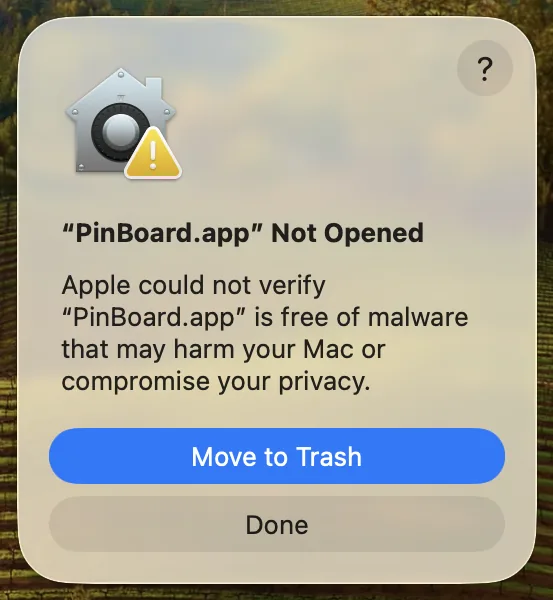
Select your OSDouble-click PinBoard after installing. You'll see a warning saying something like "PinBoard" can't be opened because Apple cannot check it for malicious software. Click Done, don't move it to Trash.
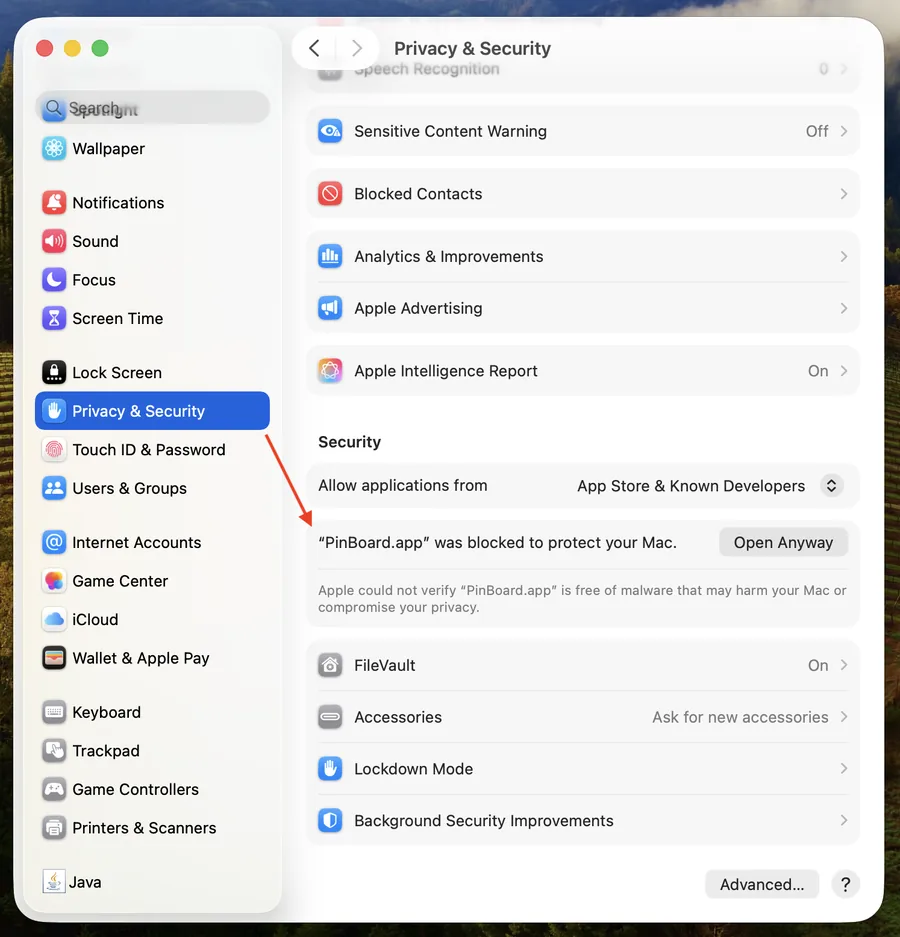
Open System Settings (Apple menu → System Settings). Go to Privacy & Security and scroll down to the Security section at the bottom. You'll see a message: "PinBoard" was blocked to protect your Mac.
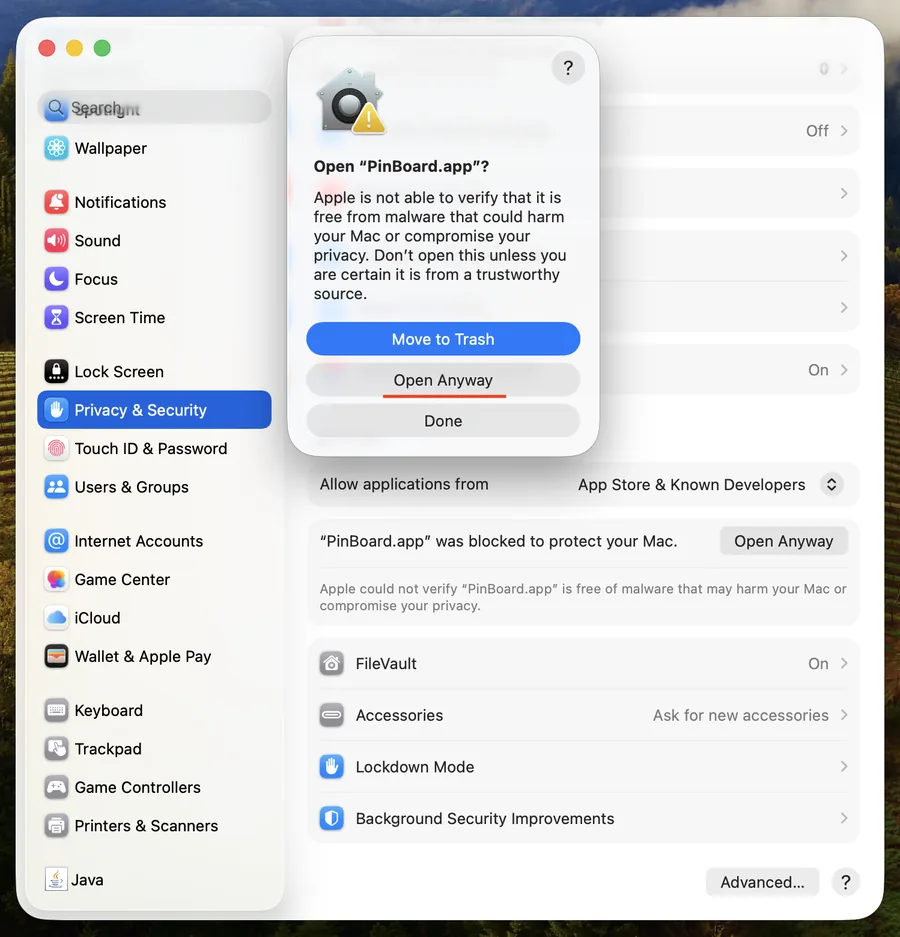
Click Open Anyway, then enter your admin password if prompted. PinBoard will launch and you won't need to do this again, future launches work normally.
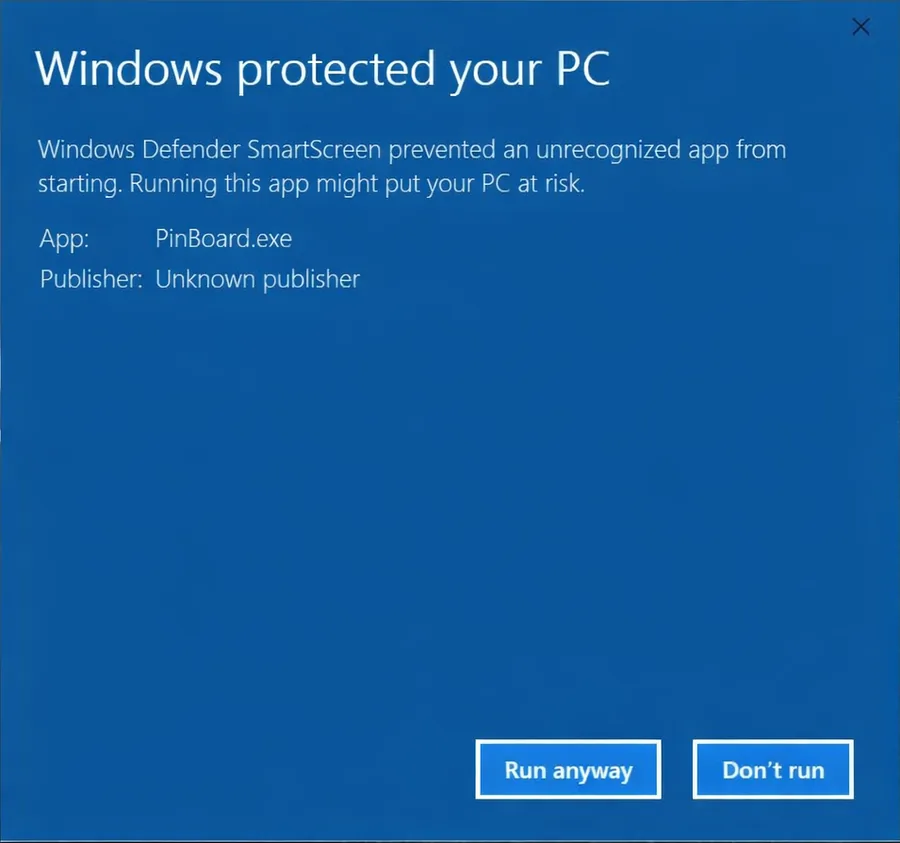
Double-click the PinBoard Setup exe. Windows Defender SmartScreen will show a
blue warning:
"Windows protected your PC", this appears because the app is new and
doesn't have a
reputation with Microsoft yet.
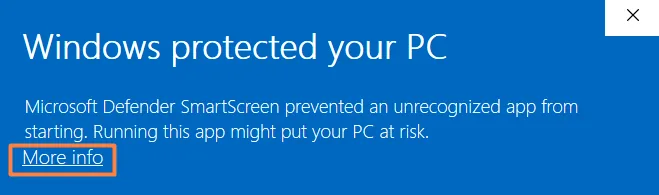
Click the More info link on the warning screen. A Run anyway button will appear, click it. The installer will proceed normally. You only need to do this once.
Download the .AppImage file (x64) from the
releases
page. You can save it anywhere you like, no installation needed.
Right-click the file → Properties → Permissions tab →
check
Allow executing file as program. Or open a terminal and run:
chmod +x PinBoard-*.AppImage
That's it, double-click the AppImage to launch PinBoard. No installer, no setup. Works on most distributions including Ubuntu, Fedora, and others.
~/Applications)
to keep things
tidy. It runs from wherever you put it.
How to Download Private Pinterest Boards
For private or secret boards, just sign in to Pinterest directly inside PinBoard (Pro). No copying cookies, no DevTools required. The private boards guide covers it in more detail.
A real Pinterest login page opens inside the app. Sign in with your email and password as you normally would. Two-factor authentication and captcha work too.
Once signed in, paste any private board URL and click Load Board. PinBoard will use your session to access it.
Everything works the same, pick a category, hit download. Your session stays active so you don't need to sign in again until it expires.
Free vs Pro
PinBoard is free to use. Upgrade to Pro for unlimited downloads and extra features.
| Free | Pro | |
|---|---|---|
| Images per board | 100 | Unlimited |
| GIFs | - | ✓ |
| Videos | - | ✓ |
| Private boards | - | ✓ |
| Download everything at once | - | ✓ |
| Skips pins you already downloaded | ✓ | ✓ |
| Devices | 1 | Up to 3 |
Get PinBoard Pro for $19 → One-time payment, no subscription. Not sure which tool fits you? We compared the best Pinterest downloaders honestly.
Pro unlocks as soon as you activate your license in the app.
Frequently Asked Questions
Ready to save your pins?
Download PinBoard and start backing up your Pinterest boards in full resolution.
Download PinBoard for Free