Pinterest GIF Downloader
How to Download GIFs from Pinterest
Saved a GIF from Pinterest and ended up with a still image? Here's why that happens, and how to save the original, animated .gif files, one at a time or a whole board at once.
Why Pinterest GIFs save as still images
On Pinterest, GIFs play like little videos in your feed. Behind the scenes, Pinterest keeps the original
.gif file, but what you see and what gets saved when you right-click is often a resized
preview or a single frame. That's why so many people end up with a JPG that doesn't move.
To get the real thing, you need the original file Pinterest stores for the pin. That's the version PinBoard
downloads: the same .gif the creator uploaded, at full size, animation included.
How to download all GIFs from a Pinterest board
This works for one GIF or a few hundred. It takes about a minute.
Download PinBoard for Mac, Windows or Linux and open it. No account needed.
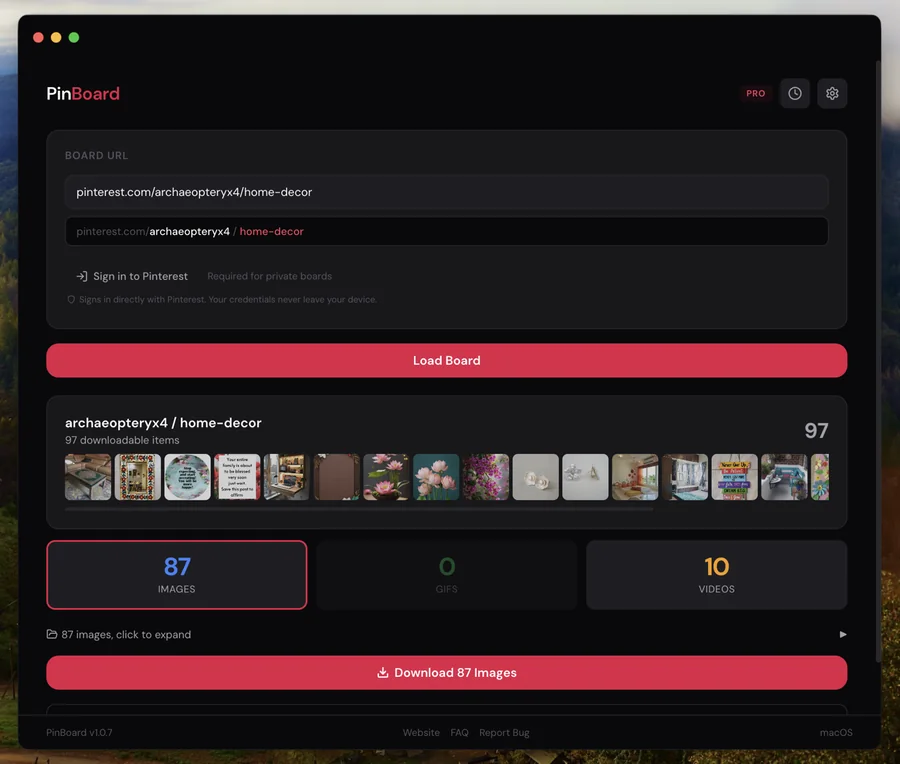
Copy the board's URL from your browser and paste it into PinBoard, or drag the link from your
browser's address bar onto the window. Short pin.it links work too.
PinBoard reads every pin on the board and sorts them into images, GIFs and videos, so you can see how many GIFs there are before you download anything.
Click the GIFs card, then Download. Every GIF lands in its
own folder as an animated .gif. Want one GIF only? Open the file list and use the
download button next to it.
GIF or video? Why some "GIFs" save as MP4
Not every looping clip on Pinterest is a GIF. Many animated pins are actually short videos, and Pinterest shows them the same way. PinBoard sorts by what the file really is: real GIFs go under GIFs, and video pins go under Videos, where they're saved as MP4 files. Our guide to downloading Pinterest videos covers those.
If you need a GIF from one of those MP4s, any video tool can convert it. With the free ffmpeg tool, for example:
ffmpeg -i clip.mp4 -vf "fps=15,scale=480:-1:flags=lanczos" clip.gifLower the fps or scale numbers if the GIF comes out too big.
Where your GIFs end up
Each board gets its own folder inside your download folder, named after the account and board, for
example janedoe_reaction-gifs_gifs. Files are named with the pin ID and the pin's description,
so they stay in a stable order and are easy to search. Download the same board again later and PinBoard
only grabs the GIFs you don't have yet.
Designers often pull GIFs into Figma, Keynote, Google Slides or Notion. Our guide for designers has more on turning a board into a reference library.
Frequently Asked Questions
Save every GIF on a board
PinBoard finds the GIFs on a board and saves the original animated files to a folder on your computer.
Download PinBoard for Free